
文章524
标签277
分类67

手把手教你使用Electron开发新浪微博免登录图片下载器

最近看了下Electron,并且自己有下载微博图片的需求,就了解了一下免登录下载微博图片的方法,最后花了几个小时写了一个小工具;

源代码:


使用Electron开发新浪微博免登录图片下载器

前言

本项目主要使用到的技术栈有:Electron + Vue、Node,前端UI使用了众所周知的ElementUI;

话不多说,接下来就开始吧!


初始化一个Electron-Vue项目

这里推荐使用simulatedgreg/electron-vue模板创建项目;

具体初始化项目可Google;

由于这个项目比较简单,我就没有使用这个模板初始化项目

首先我们使用vue初始化一个项目:

1
vue create weibo-pic-downloader

选择对应的组件之后,集成Electron;

使用下面的命令:

1
vue add vue-cli-plugin-electron-builder

并选择最新的版本安装;

这一步会下载electron的依赖文件 60M 左右;

此后,在src目录下会创建一个background.js文件,作为主进程;同时,package.json中会存在下面的一些命令:

1
2
"electron:build": "vue-cli-service electron:build",
"electron:serve": "vue-cli-service electron:serve",

我们使用yarn electron:serve或者npm run electron:serve即可启动;

启动之后如下:
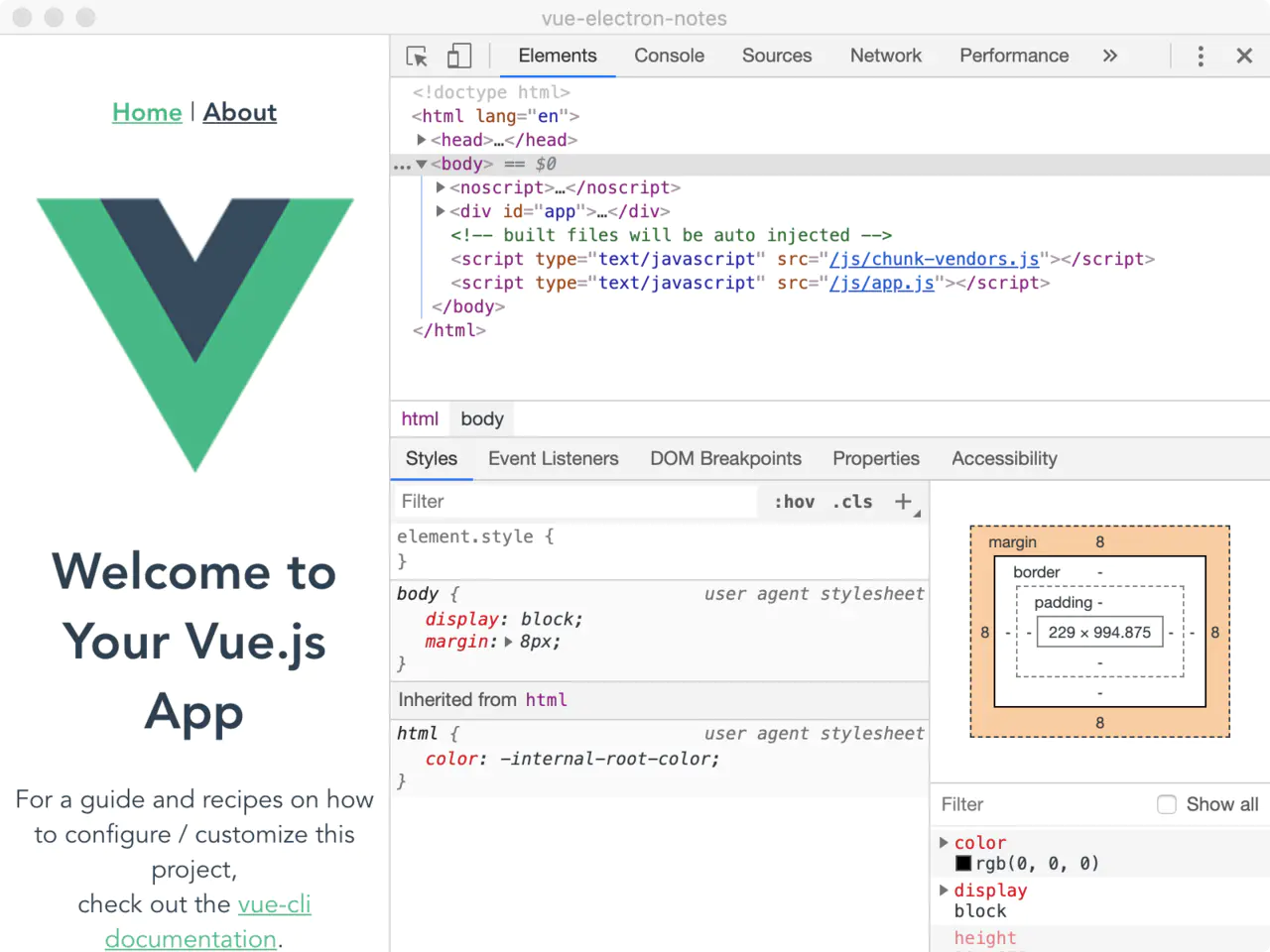
electron_1.jpg

至此,我们的开发环境和初始化项目完成!

此时的目录结构类似于下面:

1
2
3
4
5
6
7
8
9
10
11
12
$ tree
.
├─node_modules
├─public
├─package.json
└─src
├─background.js
├─main.js
├─assets
├─...
└─components
├─...

package.json中的内容如下所示:

1
2
3
4
5
6
7
8
9
10
11
12
13
14
15
16
17
18
19
20
21
22
23
24
25
26
27
28
29
30
31
32
33
34
35
36
{
"name": "weibo-pic-downloader",
"version": "0.1.0",
"private": true,
"scripts": {
"serve": "vue-cli-service serve",
"build": "vue-cli-service build",
"lint": "vue-cli-service lint",
"electron:build": "vue-cli-service electron:build",
"electron:serve": "vue-cli-service electron:serve",
"postinstall": "electron-builder install-app-deps",
"postuninstall": "electron-builder install-app-deps"
},
"main": "background.js",
"dependencies": {
"element-ui": "^2.14.0",
"request": "^2.88.2",
"vue": "^2.6.11"
},
"devDependencies": {
"@vue/cli-plugin-eslint": "~4.5.0",
"@vue/cli-service": "~4.5.0",
"electron": "^9.0.0",
"electron-devtools-installer": "^3.1.0",
"eslint": "^6.7.2",
"eslint-plugin-vue": "^6.2.2",
"vue-cli-plugin-electron-builder": "~2.0.0-rc.5",
"vue-template-compiler": "^2.6.11"
},
"description": "A no-login tool to download picture from Weibo",
"author": {
"name": "jasonkay",
"email": "jasonkayzk@gmail.com",
"url": "/cn/"
}
}

可以看到,入口文件由main.js改为了background.js!

此时:

  • main.js为渲染进程的入口;
  • background.js为主进程的入口;

编写主进程和渲染进程

在编写主进程和渲染进程之前,还是要说一下,Electron是基于Chromium实现的(相当于打开应用时打开了一个Chrome浏览器),而Chromium是基于多进程实现的,所以我们的主进程和渲染进程是在不同的进程中存在的!

而为了让主进程和渲染进程能够相互通信,就要使用IPC这种进程间通信的方法:

主进程和渲染进程分别通过注册/响应对应的事件来完成配合,这也是Electron的核心所在;

在了解了Electron的运行模式后,我们开始开发这个简单的应用吧!

① 免登录下载原理

经过一番调研,我发现微博手机版可以免登录查看几乎所有的博文,同时通过下面的链接我们可以很轻易的获取到当前页的json数据:

1
https://m.weibo.cn/api/container/getIndex?count=25&page=<pageIndex>&containerid=<containerid>

其中包括了containerid对应用户发布的文章内容、日期、图片甚至是视频的地址;

所以通过遍历pageIndex即可取到当前用户全部的博文,即可取到图片;

那么这个containerid怎么计算呢?很简单!

对于微博中某个ID来说,containerid就是"107603" + uid!

至于为什么选择107603,原因我也不清楚;

至于uid,通过查看网页源代码搜索uid即可:

https://jingyan.baidu.com/article/67662997970f6c54d51b8402.html

这里不再赘述;

既然链接可以取到,那么这个爬虫就不难了!

下面是一个示例的json:

1
2
3
4
5
6
7
8
9
10
11
12
13
14
15
16
17
18
19
20
21
22
23
24
25
26
27
28
29
30
31
32
33
34
35
36
37
38
39
40
41
42
43
44
45
46
47
48
49
50
51
52
53
54
55
56
57
58
59
60
61
62
63
64
65
66
67
68
69
70
71
72
73
74
75
76
77
78
79
80
81
82
83
84
85
86
87
88
89
90
91
92
93
94
95
96
97
98
99
100
101
102
103
104
105
106
107
108
109
110
111
112
113
114
115
116
117
118
119
120
121
122
123
124
125
126
127
128
129
130
131
132
{
"ok": 1,
"data": {
"cardlistInfo": {
"containerid": "1076036404087010",
"v_p": 42,
"show_style": 1,
"total": 2264,
"since_id": 4561408349971090
},
"cards": [{
"card_type": 9,
"itemid": "1076036404087010_-_4497263844203901",
"scheme": "https://m.weibo.cn/status/IEOhahDCR?mblogid=IEOhahDCR&luicode=10000011&lfid=1076036404087010",
"mblog": {
"visible": {
"type": 0,
"list_id": 0
},
"created_at": "04-24",
"id": "4497263844203901",
"idstr": "4497263844203901",
"mid": "4497263844203901",
"can_edit": false,
"show_additional_indication": 0,
"text": "在私信里收到的投稿 <br />泡芙已经被网友魔改成这样了吗 =͟͟͞͞(●⁰ꈊ⁰● |||)<br />你们有见过吗<span class=\"url-icon\"><img alt=[允悲] src=\"https://h5.sinaimg.cn/m/emoticon/icon/default/d_yunbei-a14a649db8.png\" style=\"width:1em; height:1em;\" /></span><br />还有一个揣手手的找不到了<span class=\"url-icon\"><img alt=[允悲] src=\"https://h5.sinaimg.cn/m/emoticon/icon/default/d_yunbei-a14a649db8.png\" style=\"width:1em; height:1em;\" /></span><span class=\"url-icon\"><img alt=[允悲] src=\"https://h5.sinaimg.cn/m/emoticon/icon/default/d_yunbei-a14a649db8.png\" style=\"width:1em; height:1em;\" /></span><span class=\"url-icon\"><img alt=[允悲] src=\"https://h5.sinaimg.cn/m/emoticon/icon/default/d_yunbei-a14a649db8.png\" style=\"width:1em; height:1em;\" /></span> ",
"textLength": 136,
"source": "大眼萌妹小泡芙超话",
"favorited": false,
"pic_types": "0,0,0,0,0,0,0,0,0",
"thumbnail_pic": "http://wx3.sinaimg.cn/thumbnail/006ZoTzYgy1ge4wf88lyoj306o06owfd.jpg",
"bmiddle_pic": "http://wx3.sinaimg.cn/bmiddle/006ZoTzYgy1ge4wf88lyoj306o06owfd.jpg",
"original_pic": "http://wx3.sinaimg.cn/large/006ZoTzYgy1ge4wf88lyoj306o06owfd.jpg",
"is_paid": false,
"mblog_vip_type": 0,
"user": {
"id": 6404087010,
"screen_name": "香香软软的小泡芙",
"profile_image_url": "https://tvax3.sinaimg.cn/crop.0.0.512.512.180/006ZoTzYly8g50rs2d4doj30e80e8gm1.jpg?KID=imgbed,tva&Expires=1604485841&ssig=NeH0xwVW5J",
"profile_url": "https://m.weibo.cn/u/6404087010?uid=6404087010&luicode=10000011&lfid=1076036404087010",
"statuses_count": 2247,
"verified": true,
"verified_type": 0,
"verified_type_ext": 1,
"verified_reason": "知名萌宠博主 微博故事原创作者",
"close_blue_v": false,
"description": "ʚ♡⃛ɞ(ू•ᴗ•ू❁)欢迎来看泡芙小公举",
"gender": "f",
"mbtype": 12,
"urank": 29,
"mbrank": 6,
"follow_me": false,
"following": false,
"followers_count": 1000209,
"follow_count": 402,
"cover_image_phone": "https://wx2.sinaimg.cn/crop.0.0.640.640.640/006ZoTzYgy1ghzqqvym3aj30e80e8752.jpg",
"avatar_hd": "https://wx3.sinaimg.cn/orj480/006ZoTzYly8g50rs2d4doj30e80e8gm1.jpg",
"like": false,
"like_me": false,
"badge": {
"panda": 1,
"user_name_certificate": 1,
"super_star_2018": 1,
"wenda_v2": 1,
"dailv_2018": 1,
"suishoupai_2019": 5,
"hongrenjie_2019": 1,
"hongbao_2020": 2,
"vpick_2020": 1,
"hongrenjie_2020": 1,
"china_2020": 1
}
},
"picStatus": "0:1,1:1,2:1,3:1,4:1,5:1,6:1,7:1,8:1",
"reposts_count": 587,
"comments_count": 724,
"attitudes_count": 6003,
"pending_approval_count": 0,
"isLongText": false,
"reward_exhibition_type": 2,
"reward_scheme": "sinaweibo://reward?bid=1000293251&enter_id=1000293251&enter_type=1&oid=4497263844203901&seller=6404087010&share=18cb5613ebf3d8aadd9975c1036ab1f47&sign=f198daa7322fe7fb70e5df1472401a79",
"hide_flag": 0,
"mlevel": 0,
"topic_id": "1022:10080860c6d22143b3121b49324e3fde3358cf",
"sync_mblog": true,
"is_imported_topic": false,
"mblogtype": 2,
"more_info_type": 0,
"extern_safe": 0,
"number_display_strategy": {
"apply_scenario_flag": 3,
"display_text_min_number": 1000000,
"display_text": "100万+"
},
"enable_comment_guide": true,
"content_auth": 0,
"pic_num": 14,
"alchemy_params": {
"ug_red_envelope": false
},
"mblog_menu_new_style": 0,
"edit_config": {
"edited": false
},
"isTop": 1,
"weibo_position": 1,
"show_attitude_bar": 0,
"raw_text": "在私信里收到的投稿 \n泡芙已经被网友魔改成这样了吗 =͟͟͞͞(●⁰ꈊ⁰● |||)\n你们有见过吗[允悲]\n还有一个揣手手的找不到了[允悲][允悲][允悲] ​​​",
"bid": "IEOhahDCR",
"pics": [{
"pid": "006ZoTzYgy1ge4wf88lyoj306o06owfd",
"url": "https://wx3.sinaimg.cn/orj360/006ZoTzYgy1ge4wf88lyoj306o06owfd.jpg",
"size": "orj360",
"geo": {
"width": "240",
"height": "240",
"croped": false
},
"large": {
"size": "large",
"url": "https://wx3.sinaimg.cn/large/006ZoTzYgy1ge4wf88lyoj306o06owfd.jpg",
"geo": {
"width": "240",
"height": "240",
"croped": false
}
}
}]
}
}]
}
}

可见我们的博文都在data.cards中,而图片在每个cards的pics.large中,链接就在图片的url中;


② 爬虫逻辑

首先我们初始化一个空的list,用于存放爬虫完成的图片地址,方便后续下载;

随后,对于传入的uid,我们每隔一定时间(防止被封)请求一页的数据,并判断和寻找符合要求的图片链接放入list中;

最后爬虫完成后,遍历list进行图片下载即可!

需要注意的有以下几点:

1.json中图片链接定位;

由上一节可知,图片链接在data.cards[i].pics.large.url中;

2.爬虫停止逻辑

微博中只能置顶单个推文,而除了第一条推文之外,其他的推文一定是按时间降序排列的;

所以对于日期范围下载,我们只需要判断当前页的最后一个cards的日期小于规定的startTime就可以停止了!

3.日期处理

博客中的日期在mblog.create_at字段中,但是不是标准的YYYY-MM-DD hh:mm:ss的格式,而是包括了:秒前、分钟前、小时前、昨天等说明,所以我们还要将这些时间统一处理转换;


③ 编写主进程

由于是一个小的工具软件,在这里我就没有对文件进行拆分:基本上所有的逻辑都在background.js中了!

下面是代码:

background.js

1
2
3
4
5
6
7
8
9
10
11
12
13
14
15
16
17
18
19
20
21
22
23
24
25
26
27
28
29
30
31
32
33
34
35
36
37
38
39
40
41
42
43
44
45
46
47
48
49
50
51
52
53
54
55
56
57
58
59
60
61
62
63
64
65
66
67
68
69
70
71
72
73
74
75
76
77
78
79
80
81
82
83
84
85
86
87
88
89
90
91
92
93
94
95
96
97
98
99
100
101
102
103
104
105
106
107
108
109
110
111
112
113
114
115
116
117
118
119
120
121
122
123
124
125
126
127
128
129
130
131
132
133
134
135
136
137
138
139
140
141
142
143
144
145
146
147
148
149
150
151
152
153
154
155
156
157
158
159
160
161
162
163
164
165
166
167
168
169
170
171
172
173
174
175
176
177
178
179
180
181
182
183
184
185
186
187
188
189
190
191
192
193
194
195
196
197
198
199
200
201
202
203
204
205
206
207
208
209
210
211
212
213
214
215
216
217
218
219
220
221
222
223
224
225
226
227
228
229
230
231
232
233
234
235
236
237
238
239
240
241
242
243
244
245
246
247
248
249
250
251
252
253
254
255
256
257
258
259
260
261
262
263
264
265
266
267
268
269
'use strict'

/* global __static */
import {app, protocol, BrowserWindow, ipcMain, dialog} from 'electron'
import {createProtocol} from 'vue-cli-plugin-electron-builder/lib'
import installExtension, {VUEJS_DEVTOOLS} from 'electron-devtools-installer'
import request from 'request'
import util from 'util'
import path from 'path'
import fs from 'fs'
import {formatDate} from "element-ui/src/utils/date-util";

const getPromise = util.promisify(request.get);
const isDevelopment = process.env.NODE_ENV !== 'production'

// Scheme must be registered before the app is ready
protocol.registerSchemesAsPrivileged([
{scheme: 'app', privileges: {secure: true, standard: true}}
])

let mainList = []

async function createWindow() {
// Create the browser window.
const win = new BrowserWindow({
width: 450,
height: 650,
webPreferences: {
nodeIntegration: true
},
icon: path.join(__static, 'favicon.ico')
})

if (process.env.WEBPACK_DEV_SERVER_URL) {
// Load the url of the dev server if in development mode
await win.loadURL(process.env.WEBPACK_DEV_SERVER_URL)
if (!process.env.IS_TEST) win.webContents.openDevTools()
} else {
createProtocol('app')
// Load the index.html when not in development
win.loadURL('app://./index.html')
}

await regCrawlList();
}

function regCrawlList() {
ipcMain.on('crawl-list', async (e, userId, startDate, endDate) => {
// re-init list
mainList = []
// crawl-index
let pageIndex = 1;
// 防封,分析一次页面休息+1S
const interval = 1000;

// 获取全部url
while (await getAllImageUrl(userId, startDate, endDate, pageIndex, e.sender) > 0) {
console.log('分析微博:' + pageIndex);
pageIndex++;
await sleep(interval);
}

// 获取完毕,触发下载
handleList(mainList, e.sender)
})
}

async function getAllImageUrl(userId, startDate, endDate, page, sender) {
let url = "https://m.weibo.cn/api/container/getIndex?count=25&page=" + page + "&containerid=" + userIdToContainerId(userId);

let cards = [];
let lastCreateAt = new Date();
await getPromise(url).then((value) => {
console.log(value.body)
let jsonObj = JSON.parse(value.body);
cards = jsonObj.data.cards;
for (let i = 0; i < cards.length; i++) {
let mblog = cards[i].mblog;
if (mblog != null) {
lastCreateAt = mblog.created_at.toString()
lastCreateAt = getDate(transWeiboDateStrToTimeStamp(lastCreateAt))
if (!checkDate(lastCreateAt, startDate, endDate)) {
console.log(lastCreateAt, startDate, endDate)
continue;
}
let pics = mblog.pics;
if (pics != null) {
for (let j = 0; j < pics.length; j++) {
let large = pics[j].large;
if (large != null) {
let iUrl = large.url
mainList.push({
"url": iUrl,
"date": formatDate(lastCreateAt),
})
}
}
}
}
}
sender.send('crawl-list-add', page, mainList.length)
})

// 如果最后一个微博已经小于开始,可直接退出;
return cards.length === 0 ? 0 : (lastCreateAt.getTime() >= startDate.getTime());
}

function handleList(urlList, sender) {
// 去重
urlList = Array.from(new Set(urlList))

// 空数组直接取消下载
if (urlList.length === 0) {
sender.send('crawl-download-canceled')
}

dialog
.showOpenDialog({properties: ['openFile', 'openDirectory', 'multiSelections']})
.then(async res => {
if (res.canceled) {
sender.send('crawl-download-canceled')
}

let savePathPrefix = res.filePaths[0]
if (savePathPrefix == null || savePathPrefix === "") {
return
}
for (let i = 0; i < urlList.length; i++) {
let imgPath = path.join(savePathPrefix, (i + 1) + '_' + urlList[i].date + getSuffix(urlList[i].url));
await sleep(1000)
downloadAndSave(urlList[i].url, imgPath, sender)
}
})
}

function checkDate(checkDate, startDate, endDate) {
return checkDate.getTime() >= startDate.getTime() && checkDate.getTime() <= endDate.getTime();
}

function getDate(dateTimestamp) {
return new Date(dateTimestamp);
}

function transWeiboDateStrToTimeStamp(weiboDateStr) {
console.log("translate before: " + weiboDateStr)
if (weiboDateStr == null || "" === weiboDateStr) {
return 0;
}
if (weiboDateStr.search("秒前") >= 0) {
weiboDateStr = weiboDateStr.replace("秒前", "");
let second = parseInt(weiboDateStr);
return new Date().getTime() - second * 1000;
}
if (weiboDateStr.search("分钟前") >= 0) {
weiboDateStr = weiboDateStr.replace("分钟前", "");
let minite = parseInt(weiboDateStr);
return new Date().getTime() - minite * 1000 * 60;
}
if (weiboDateStr.search("小时前") >= 0) {
weiboDateStr = weiboDateStr.replace("小时前", "");
let hours = parseInt(weiboDateStr);
return new Date().getTime() - hours * 1000 * 3600;
}
if (weiboDateStr.search("昨天") >= 0) {
return new Date().getTime() - 1000 * 60 * 60 * 24
}
if (weiboDateStr.search('-') >= 0) {
if (!weiboDateStr.startsWith("20")) {
let year = new Date().getFullYear();
weiboDateStr = year + "-" + weiboDateStr;
}
try {
return parseDate(weiboDateStr).getTime();
} catch (e) {
return 0;
}
}
return 0;
}

function parseDate(input, format) {
format = format || 'yyyy-mm-dd'; // default format
let parts = input.match(/(\d+)/g),
i = 0, fmt = {};
// extract date-part indexes from the format
format.replace(/(yyyy|dd|mm)/g, function (part) {
fmt[part] = i++;
});

return new Date(parts[fmt['yyyy']], parts[fmt['mm']] - 1, parts[fmt['dd']]);
}

function getSuffix(iUrl) {
if (!iUrl.substring(iUrl.lastIndexOf("/")).includes(".")) {
return ".jpg";
}
try {
return iUrl.substring(iUrl.lastIndexOf("."));
} catch (e) {
// default
console.error(e)
}
return ".jpg";
}

function downloadAndSave(fileUrl, targetSavePath, sender) {
let out = fs.createWriteStream(targetSavePath);
request({
method: 'GET', uri: fileUrl
}).on('end', function () {
sender.send('crawl-download', fileUrl)
}).pipe(out);
}

function userIdToContainerId(userId) {
if (userId === null) {
return "0";
}
return "107603" + userId;
}

function sleep(ms) {
return new Promise(resolve => setTimeout(resolve, ms))
}

// Quit when all windows are closed.
app.on('window-all-closed', () => {
// On macOS it is common for applications and their menu bar
// to stay active until the user quits explicitly with Cmd + Q
if (process.platform !== 'darwin') {
app.quit()
}
})

app.on('activate', () => {
// On macOS it's common to re-create a window in the app when the
// dock icon is clicked and there are no other windows open.
if (BrowserWindow.getAllWindows().length === 0) createWindow()
})

// This method will be called when Electron has finished
// initialization and is ready to create browser windows.
// Some APIs can only be used after this event occurs.
app.on('ready', async () => {
if (isDevelopment && !process.env.IS_TEST) {
// Install Vue Devtools
try {
await installExtension(VUEJS_DEVTOOLS)
} catch (e) {
console.error('Vue Devtools failed to install:', e.toString())
}
}
createWindow()
})

// Exit cleanly on request from parent process in development mode.
if (isDevelopment) {
if (process.platform === 'win32') {
process.on('message', (data) => {
if (data === 'graceful-exit') {
app.quit()
}
})
} else {
process.on('SIGTERM', () => {
app.quit()
})
}
}

首先,主进程中的mainList就是用来存放,爬虫后图片的链接的;

随后createWindow创建了一个窗口,并声明了窗口大小、icon等内容,在最后通过调用regCrawlList函数注册了一个crawl-list事件;

在regCrawlList函数中,我们给ipcMain注册了一个crawl-list事件:该事件接受渲染进程中按钮点击触发的事件,并接收渲染进程中传送来的userId, startDate, endDate,调用getAllImageUrl执行爬虫逻辑;

在getAllImageUrl中,我们使用了一些辅助函数完成了在第二步中讲述的爬虫逻辑;同时,每当加入一页的图片链接,我们的主进程调用send方法,触发crawl-list-add事件,向渲染进程报告当前爬虫的页数,以及已经爬取到的图片数量;

爬虫完成后,在regCrawlList函数的最后调用handleList,触发下载事件;

在handleList中,首先进行了链接去重,随后使用dialog.showOpenDialog({properties: ['openFile', 'openDirectory', 'multiSelections']})打开了一个保存文件对话框;然后,计算每个文件的保存路径,并使用node中的fs和request进行下载并保存;并且每完成一个下载任务,会触发crawl-download事件,通知渲染进程进行进度条的渲染;


④ 编写渲染端

渲染端就是典型的Vue项目以及通过ipcRenderer处理的一些事件;

下面是三个渲染端涉及到的文件:

main.js

1
2
3
4
5
6
7
8
9
10
11
12
13
14
import Vue from 'vue'
import ElementUI from 'element-ui';
import 'element-ui/lib/theme-chalk/index.css';
import App from './App.vue'

Vue.use(ElementUI);

Vue.config.productionTip = false

new Vue({
render: function (h) {
return h(App)
},
}).$mount('#app')

App.vue

1
2
3
4
5
6
7
8
9
10
11
12
13
14
15
16
17
18
19
20
21
22
23
24
25
26
27
28
<template>
<div id="app">
<img alt="Vue logo" src="./assets/logo.png">
<Crawler/>
</div>
</template>

<script>
import Crawler from './components/Crawler.vue'

export default {
name: 'App',
components: {
Crawler
}
}
</script>

<style>
#app {
font-family: Avenir, Helvetica, Arial, sans-serif;
-webkit-font-smoothing: antialiased;
-moz-osx-font-smoothing: grayscale;
text-align: center;
color: #2c3e50;
margin-top: 60px;
}
</style>

Crawler.vue

1
2
3
4
5
6
7
8
9
10
11
12
13
14
15
16
17
18
19
20
21
22
23
24
25
26
27
28
29
30
31
32
33
34
35
36
37
38
39
40
41
42
43
44
45
46
47
48
49
50
51
52
53
54
55
56
57
58
59
60
61
62
63
64
65
66
67
68
69
70
71
72
73
74
75
76
77
78
79
80
81
82
83
84
85
86
87
88
89
90
91
92
93
94
95
96
97
98
99
100
101
102
103
104
105
106
107
108
109
110
111
112
113
114
115
116
117
118
119
120
121
122
123
124
125
126
127
128
129
130
131
132
133
<template>
<div id="container">
<el-form ref="form" :model="form" label-width="80px">
<el-form-item label="用户Id">
<el-input v-model="form.userId"
placeholder="请输入Id"
style="width: 95%"
clearable>
</el-input>
</el-form-item>
<el-form-item label="发表时间">
<el-col :span="11">
<el-date-picker type="date" placeholder="开始日期" v-model="form.date1"
style="width: 100%;"></el-date-picker>
</el-col>
<el-col class="line" :span="2">-</el-col>
<el-col :span="11">
<el-date-picker type="date" placeholder="结束日期" v-model="form.date2"
style="width: 100%;"></el-date-picker>
</el-col>
</el-form-item>
<el-form-item>
<el-button id="submitBtn" type="primary" @click="onSubmit" :disabled="btnDisabledStatus">立即下载</el-button>
</el-form-item>
</el-form>

<div id="crawl-list" v-if="showCrawlList">
<span v-text="crawlListText"></span>
</div>
<div id="process-bar" v-if="showProcessBar">
<el-progress
:text-inside="true"
:percentage="$data.downloadPercent"
:stroke-width="22"
:color="processBarColor"
></el-progress>
</div>
</div>
</template>

<style scoped>
#container {
margin-top: 20px;
}

#submitBtn {
margin-left: -80px;
}

#process-bar {
width: 85%;
margin-left: 42px;
margin-top: 15px;
}

</style>

<script>
const {ipcRenderer} = window.require('electron')

export default {
name: 'Crawler',
data() {
return {
form: {
userId: '',
date1: '',
date2: ''
},
crawlListLength: 0,
downloaded: 0,
downloadPercent: 0,
showCrawlList: false,
btnDisabledStatus: false,
showProcessBar: false,
processBarColor: '#5cb87a',
crawlListText: ''
}
},
mounted: function () {
this.listenAddCrawlList();
this.listenDownloadList();
this.listenDownloadCanceled();
},
methods: {
onSubmit() {
this.downloaded = 0;
console.log(this.form.userId)
ipcRenderer.send('crawl-list', this.form.userId, this.form.date1, this.form.date2)
if (!this.showCrawlList) {
this.showCrawlList = true
}
if (!this.btnDisabledStatus) {
this.btnDisabledStatus = true;
}
},
listenAddCrawlList() {
let that = this
ipcRenderer.on('crawl-list-add', function (e, pageIndex, mainListLength) {
that.crawlListLength = mainListLength;
that.crawlListText = '目前扫描' + pageIndex + "页,预计下载图片" + mainListLength + "张!"
})
},
listenDownloadList() {
let that = this
that.downloaded = 0
ipcRenderer.on('crawl-download', function () {
if (!that.showProcessBar) {
that.showProcessBar = true
}
that.downloaded++;
that.downloadPercent = Number((that.downloaded / that.crawlListLength * 100).toFixed(2))

// 下载完成
console.log(that.downloaded, that.crawlListLength)

if (that.downloaded === that.crawlListLength) {
that.btnDisabledStatus = false;
that.downloaded = 0;
that.crawlListText = '下载已完成';
}
})
},
listenDownloadCanceled() {
let that = this
ipcRenderer.on('crawl-download-canceled', function () {
that.btnDisabledStatus = false;
that.downloaded = 0;
})
}
},
};
</script>

main.js和App.vue就是通常的Vue项目,几乎无改动,下面我们重点看Crawler.vue;

在template中我们定义了:

  • 一个表单:用于接收用户参数以及触发爬虫和下载的按钮;
  • 一个list:显示当前内容;
  • 一个process-bar:显示当前下载进度;

在这个组件中,我们定义了几个参数:

  • form:
    • userId:微博用户uid;
    • date1:开始日期;
    • date2:结束日期;
  • crawlListLength:当前图片链接个数;
  • downloaded:已下载图片个数;
  • downloadPercent:已下载百分比;
  • showCrawlList:是否显示通知内容;
  • btnDisabledStatus:提交按钮可用?;
  • showProcessBar:是否显示进度条;
  • crawlListText:通知内容;

在mounted中我们触发了三个函数:

  • this.listenAddCrawlList();
  • this.listenDownloadList();
  • this.listenDownloadCanceled();

分别监听了crawl-list-add、crawl-download以及crawl-download-canceled事件;

最后的onSubmit函数触发了主进程中的crawl-list事件,开始爬虫;

至此,主进程和渲染进程都开发完毕;


⑤ 启动测试

在开发时就可以使用npm run electron:serve进行热部署开发;

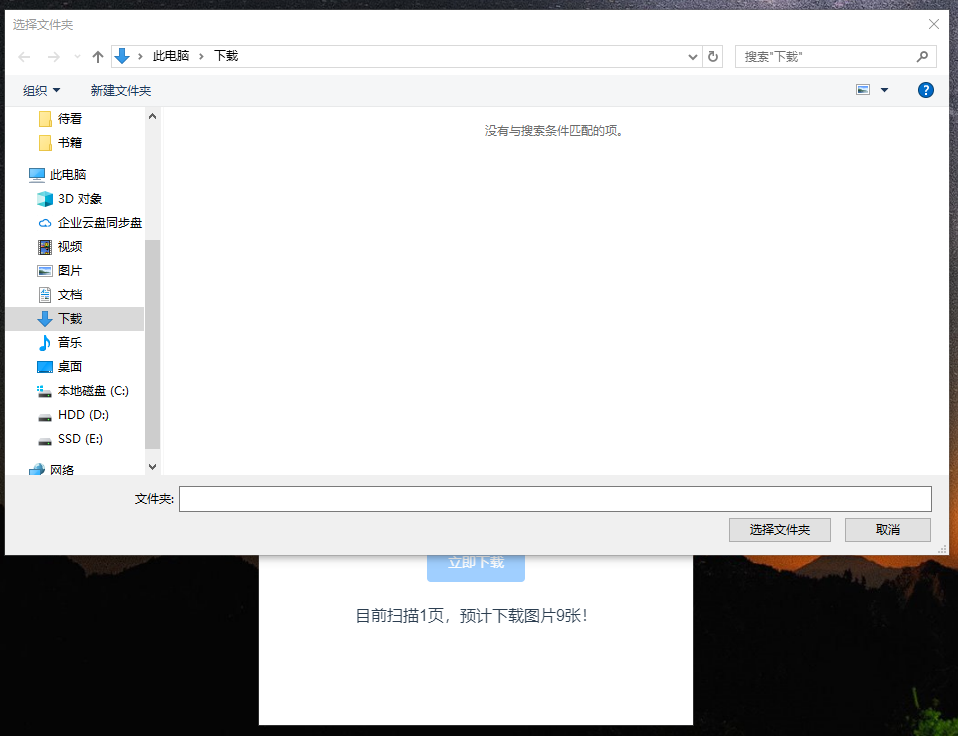
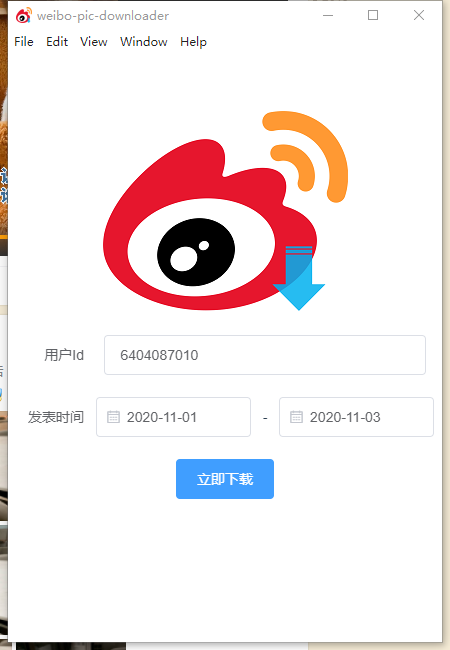
我们在软件中填入userId,并选择时间日期,最后点击“立即下载”;
weiboPicDownloader_1.png

稍等片刻,爬虫完成后,会弹出保存窗口,选择下载目录后即可开始下载:

weiboPicDownloader_2.png

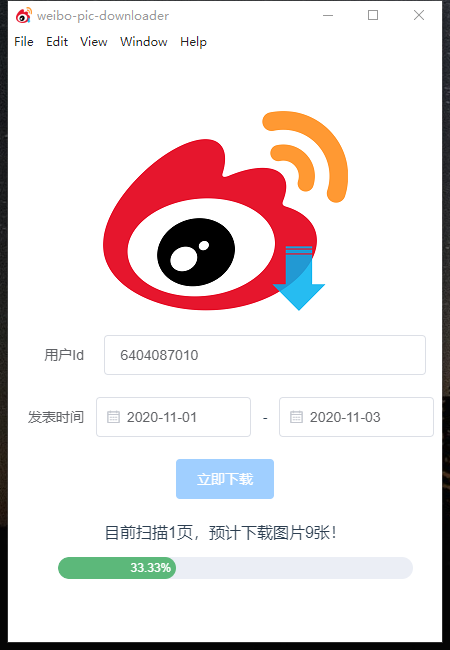
开始下载:

weiboPicDownloader_3.png

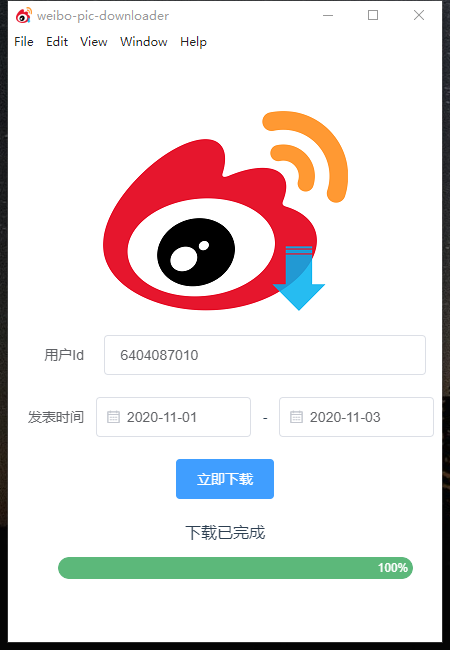
完成下载:

weiboPicDownloader_4.png

最后即可在你选择的目录找的下载的图片啦!


打包应用

本项目使用了vue-cli-plugin-electron-builder进行打包;

使用起来也非常简单:

  • win平台:npm run electron:build -- --win nsis
  • mac平台:npm run electron:build -- --mac
  • linux平台:npm run electron:build -- --linux deb

Vue CLI Plugin Electron Builder官方文档:

Vue CLI Plugin Electron Builder

其他使用方法可见上方文档;

由于Electron的Linux和Mac的编译地址down掉,目前还没有恢复!

所以mac和linux上述命令会报错,类似于:

1
2
3
4
5
6
7
8
9
10
• cannot get, wait error=Get https://service.electron.build/find-build-agent?no-cache=1f42oro: dial tcp 51.15.76.176:443: connectex: A connection attempt failed because the connected party did not properly respond after a period of time, or established connection failed because connected host has failed to respond.
attempt=0
waitTime=2
• cannot get, wait error=Get https://service.electron.build/find-build-agent?no-cache=1f42oro: dial tcp 51.15.76.176:443: connectex: A connection attempt failed because the connected party did not properly respond after a period of time, or established connection failed because connected host has failed to respond.
attempt=1
waitTime=4
……
⨯ Get https://service.electron.build/find-build-agent?no-cache=1f42oro: dial tcp 51.15.76.176:443: connectex: A connection attempt failed because the connected party did not properly respond after a
period of time, or established connection failed because connected host has failed to respond.
⨯ C:\Users\mcw\AppData\Roaming\npm\node_modules\electron-builder\node_modules\app-builder-bin\win\x64\app-builder.exe exited with code ERR_ELECTRON_BUILDER_CANNOT_EXECUTE stackTrace=..

见下面的issue:

解决方案见:


后记

由于我主要是做后端开发相关的工作,前端并不是我的强项(最多也就是用js写一下node),所以有些功能可能实现的并不是很好,但是基本的需求已经完全满足了;

源代码:

有兴趣的可以去看看,给个star~


本文作者:Jasonkay
本文链接:https://jasonkayzk.github.io/cn/2020/11/04/%E6%89%8B%E6%8A%8A%E6%89%8B%E6%95%99%E4%BD%A0%E4%BD%BF%E7%94%A8Electron%E5%BC%80%E5%8F%91%E6%96%B0%E6%B5%AA%E5%BE%AE%E5%8D%9A%E5%85%8D%E7%99%BB%E5%BD%95%E5%9B%BE%E7%89%87%E4%B8%8B%E8%BD%BD%E5%99%A8/
版权声明:本文采用 CC BY-NC-SA 3.0 CN 协议进行许可